
Help Managing your world
Verification
A Verify button in your Discord server. Members sign in with Microsoft, so you know which Xbox account each of them is, and your admins approve each one before they're let in.
What verification does
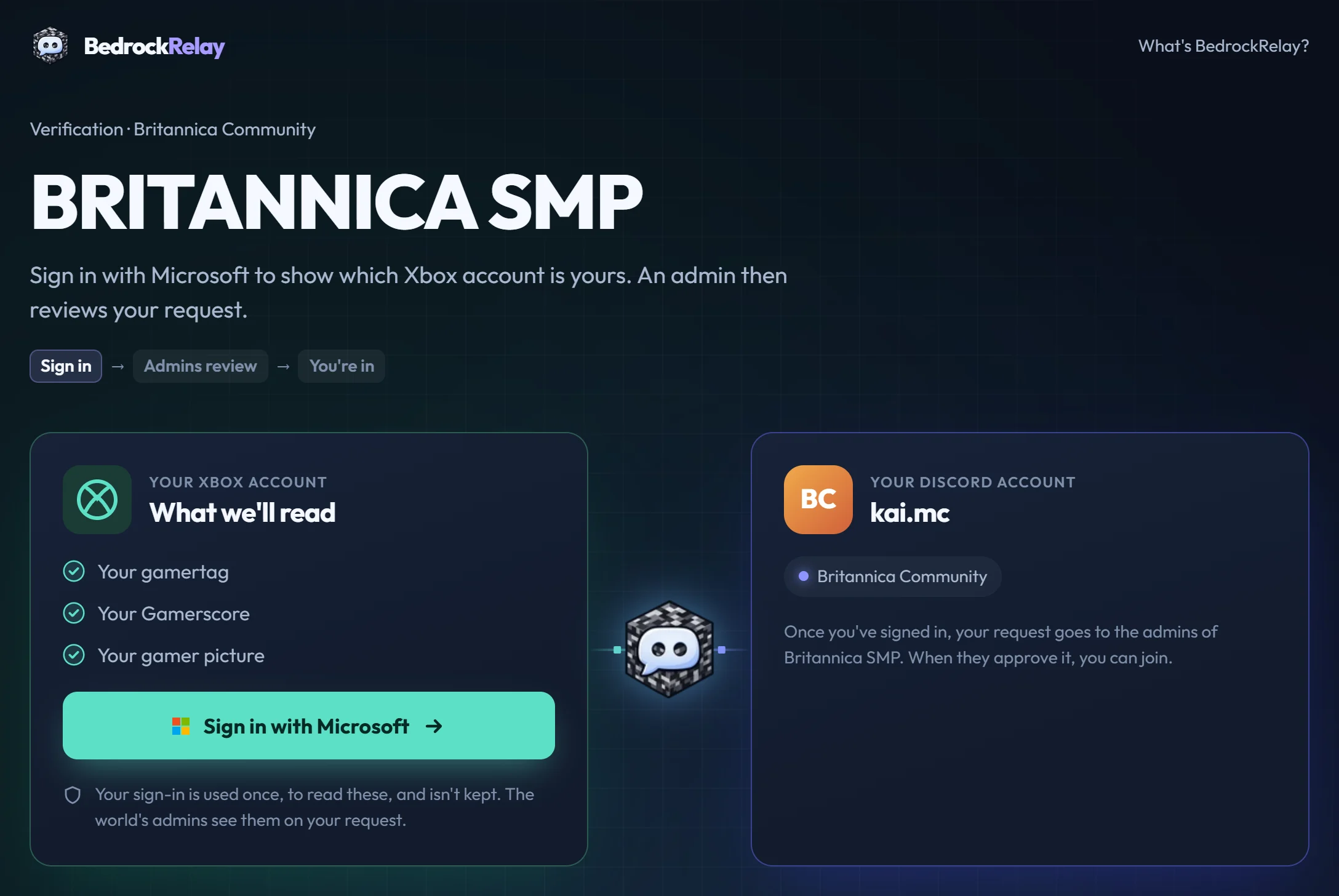
BedrockRelay posts a welcome message with a Verify button in a channel you choose. A member who presses it signs in with Microsoft, and BedrockRelay reads three things from their Xbox account: their gamertag, their Gamerscore and their gamer picture. What happens next depends on how you set it up:
- Admins approve each player. The request appears in a review channel with Approve and Deny. Approving adds the player to your server's allowlist, or invites them to your Realm. It also links their Discord and Xbox accounts and gives them your role, if you chose one.
- Link accounts only. Members link their accounts straight away, with no review, and get your role. Nobody is added to the world. Use this if you only want to know who is who.
Setting it up
- Open your world on the dashboard and choose the Verification tab.
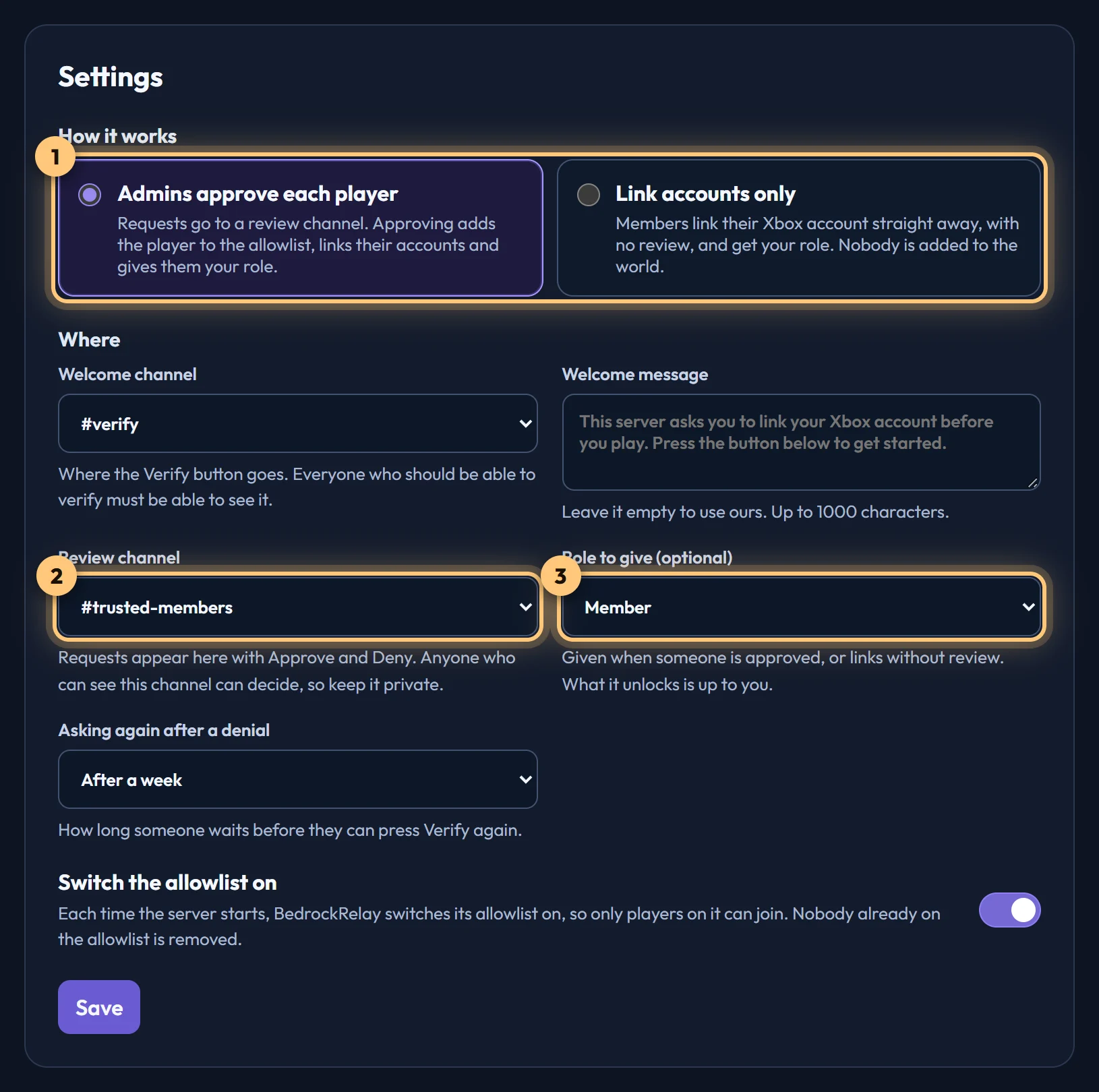
- Choose how it works (1): admins approve each player, or link accounts only.
- Choose the welcome channel, where the Verify button goes. Everyone who should be able to verify needs to see it.
- For approvals, choose the review channel (2), where requests appear. Anyone who can see it can approve or deny, so make it a private channel for your admins.
- If you like, choose a role to give (3), write your own welcome message, and choose how long someone must wait to ask again after a denial: an hour, a day, a week, 30 days, or never.
- Choose Save and post. The welcome message appears in your welcome channel.
Each Minecraft world has its own welcome message. If your Discord server has two worlds, it shows two.
Giving a role needs the Manage Roles permission, and BedrockRelay's role must be above the one it gives in your Discord server's role list. The tab tells you if it can't.
Reviewing requests
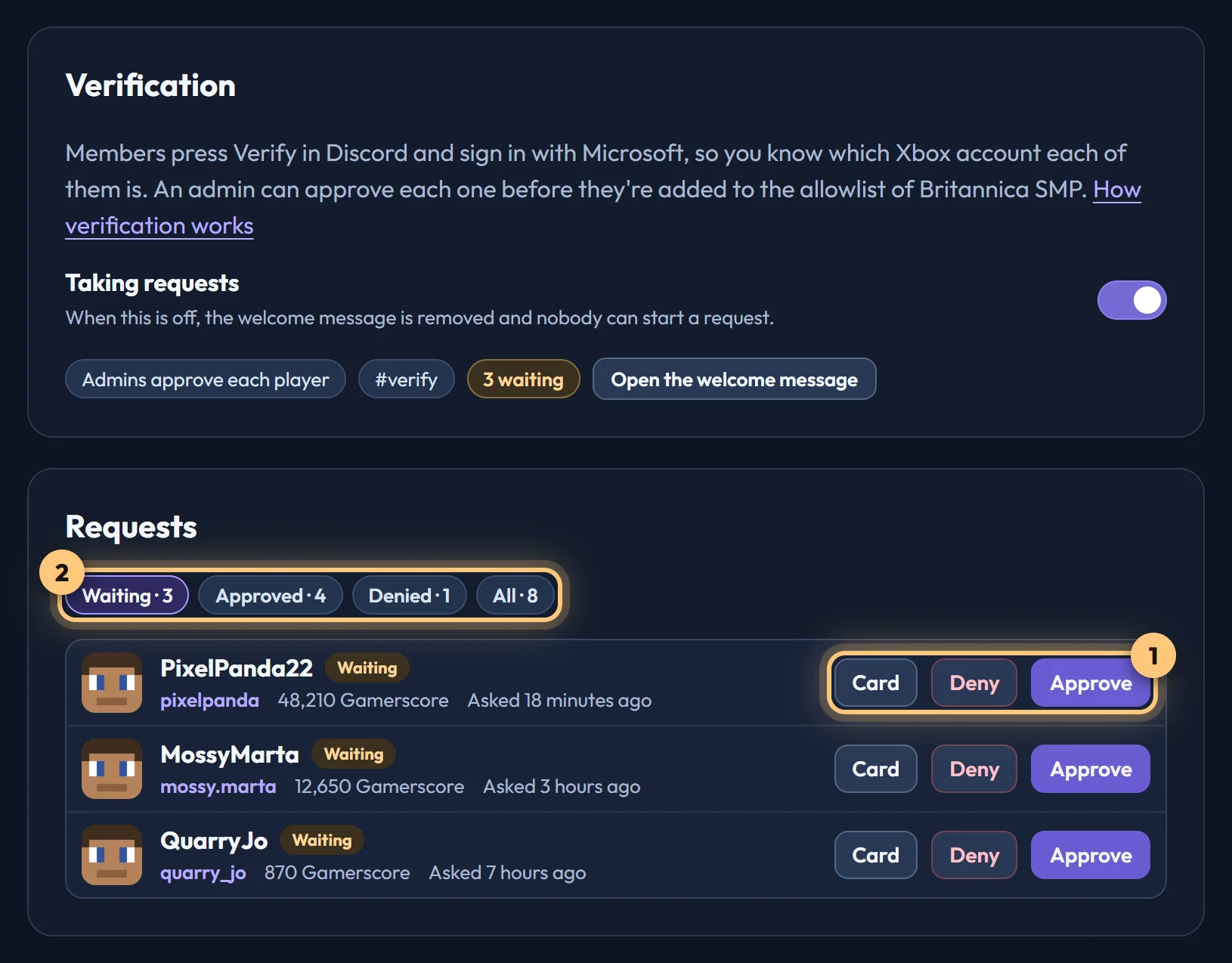
Each request appears in your review channel as a card with the member's Discord account, their gamertag and Gamerscore, and when they asked. It also lists other accounts: another Discord member who asked with the same Xbox account, or this member asking with a different one. That helps you spot alternative accounts.
Press Approve or Deny on the card, or do the same on the dashboard's Verification tab (1). The card updates to show who decided, and what happened.
Who can decide is up to your Discord server: anyone who can see the review channel. BedrockRelay never sends anyone a direct message. Your role is how a member knows they were approved, for example if it shows them your members' channels.
On a dedicated server
Approving adds the player to your server's allowlist, at once. It needs BedrockRelay pack 0.7.0 or newer: update the pack from your world's Settings tab. Until then, approvals wait, and are added once the pack is updated.
- The allowlist only keeps people out while it's on. Turn on Switch the allowlist on and BedrockRelay switches it on each time your server starts. You can also set
allow-list=trueinserver.propertiesyourself. - If your server is offline when someone is approved, they're added when it's back.
- People already on your allowlist are never removed, whether or not you use verification.
On a Realm
Approving adds the player to your Realm straight away. A Realm can't take someone without their say-so: your Microsoft sign-in (the one you gave when you connected the Realm) invites them, and their own accepts. So when a member asks to join a Realm, BedrockRelay keeps their sign-in in memory until an admin decides, for seven days at most, and uses it only to accept your Realm's invite. It's never saved, and it's dropped as soon as the request is decided.
If that doesn't work out (nobody decided within seven days, or BedrockRelay restarted in between), approving sends an invite instead. The player can accept it in Minecraft, under Play, then Realms, or press Verify again: it offers Join the Realm, and one more sign-in adds them. Only the Xbox account that was approved can join that way. The Verification tab shows anyone still waiting to accept.
Players you've banned from the Realm aren't invited.
If your Microsoft sign-in has stopped working, the tab tells you to sign in again on your Account page. Approvals wait until you do.
Taking an approval back
On the Verification tab, choose Revoke beside someone you approved. BedrockRelay undoes only what it did: the link goes, the role is taken back if BedrockRelay gave it, and the player is taken off the allowlist or out of the Realm if BedrockRelay added them. If they're playing, they're kicked. Anyone who was already on the allowlist or in the Realm before stays there.
Turning verification off removes the welcome message. Requests and approvals are kept, and nobody loses their place in your world.
What's kept
For each request, BedrockRelay keeps the member's Discord account, their Xbox gamertag, account ID, Gamerscore and gamer picture, and who decided and when. Your admins see these on the card and the dashboard; other worlds' owners never do. The member's Microsoft sign-in is used once and never kept. Denied requests are deleted 30 days after the member could ask again; with Never, they're kept, because that's what stops them asking. See the Privacy Policy.
Ready to connect a world, or need to change something?
Open the dashboard