
Help Managing your world
Invite links
One short link to share anywhere. Players open it, sign in, and they're in your Realm or your Discord server, or both.
What an invite link is
Your Minecraft world can have one address on bedrockrelay.link, like bedrockrelay.link/cosy-cove. It opens a page with your world's name, whether it's online and how many are playing, and a button for each thing you choose to show:
- Join Realm, for a Realm. The player signs in with their Microsoft account and is added to your Realm straight away. Your Realm's own invite code is never shown, so it can't be passed around.
- Your server's address and port, for a dedicated server, with copy buttons, ready for Minecraft's Add Server screen.
- Join Discord. The player signs in with Discord and our bot adds them to your Discord server. There's no Discord invite to expire or leak.
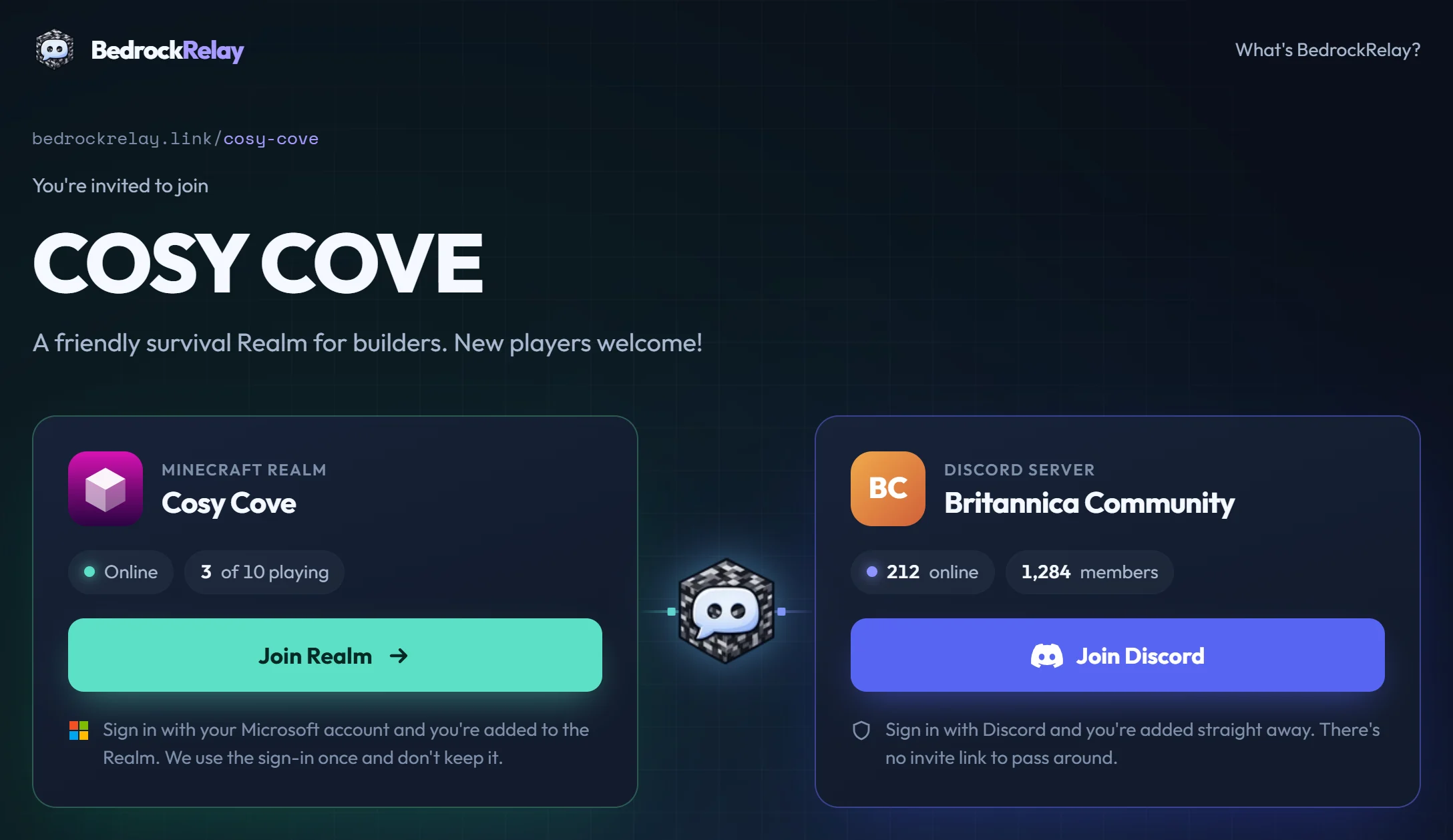
The page never lists who is playing, only how many.
Making your link
- Open your world on the dashboard and choose the Invite link tab.
- Choose an address (1). It's suggested from your world's name; letters, numbers and hyphens, 3 to 32 characters. The dashboard tells you as you type whether it's free.
- Choose what the page shows: joining the world (2), joining a Discord server (3), or both. If your world posts to more than one Discord server, pick which one.
- If you like, give the page your own heading, and a line about your world under it.
- Choose Create link.
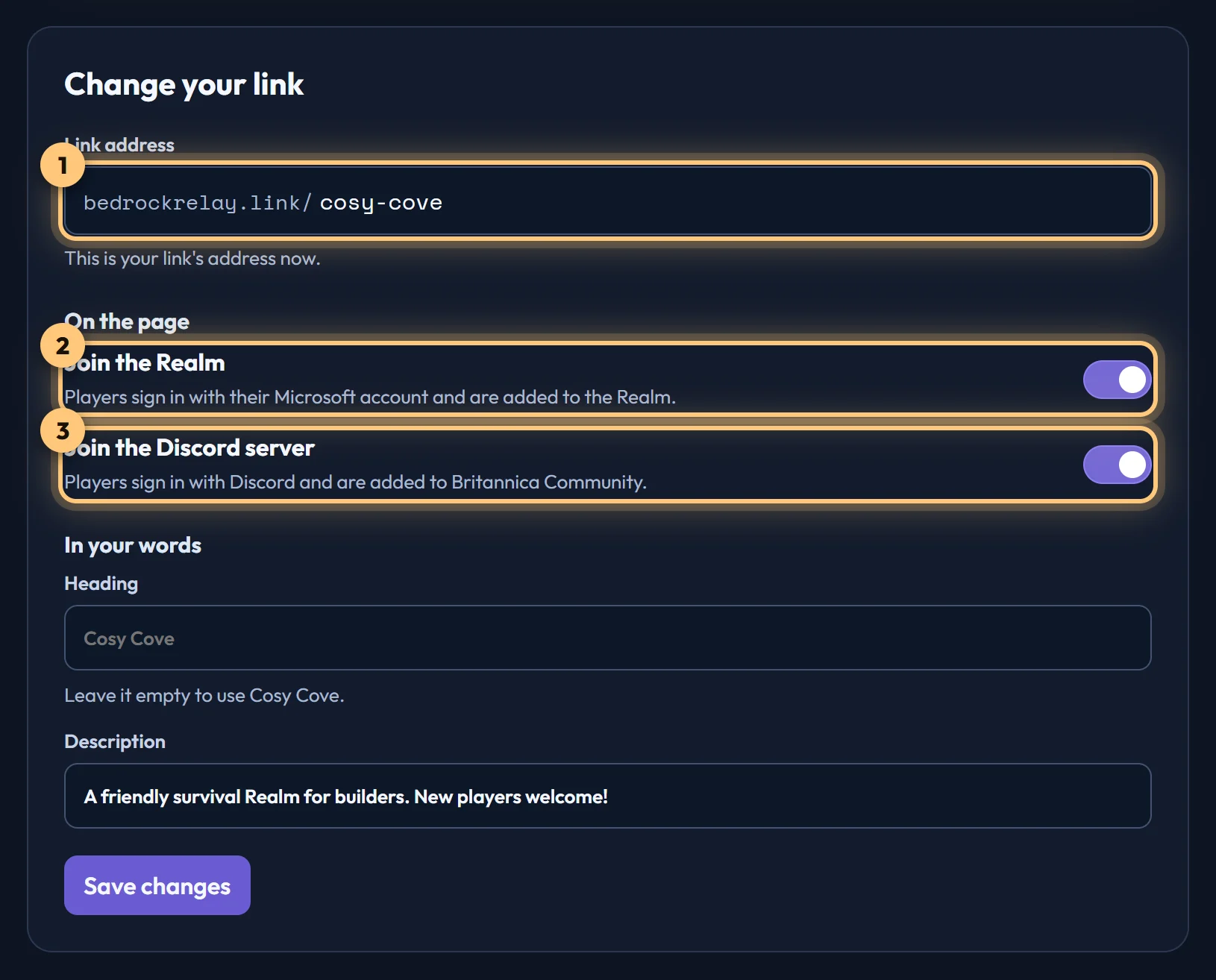
Only the world's owner sees this tab. Some addresses are reserved, such as names that could pass for Minecraft, Mojang, Microsoft, Discord or BedrockRelay.
Joining a Realm
When a player chooses Join Realm, they sign in with Microsoft. BedrockRelay invites them to your Realm with the Microsoft sign-in you gave when you connected it, and accepts the invite for them. Your Realm then appears in their Realms list in Minecraft. Their sign-in is used for that one join and never kept.
- Players you've banned from the Realm aren't added.
- The account needs to have played Minecraft online at least once. Child accounts may not be able to join this way; you can still invite them yourself in Minecraft.
- If your Microsoft sign-in stops working (you signed out, or removed BedrockRelay's access in your Microsoft account), the page says joining isn't possible right now, and your Invite link tab tells you to sign in again on your Account page.
Joining your Discord server
When someone chooses Join Discord, they sign in with Discord, and our bot adds them to your Discord server. We ask Discord only who they are and to add them, and we revoke that sign-in straight after. Anyone you've banned from your Discord server stays out.
Discord only lets a bot add members if it has the Create Invite permission. Discord servers that added BedrockRelay before invite links existed may not have given it. If so, the Invite link tab says so and offers Allow adding members, which takes you to Discord to approve it. Until then, the page leaves your Discord server out.
Pausing, changing and deleting it
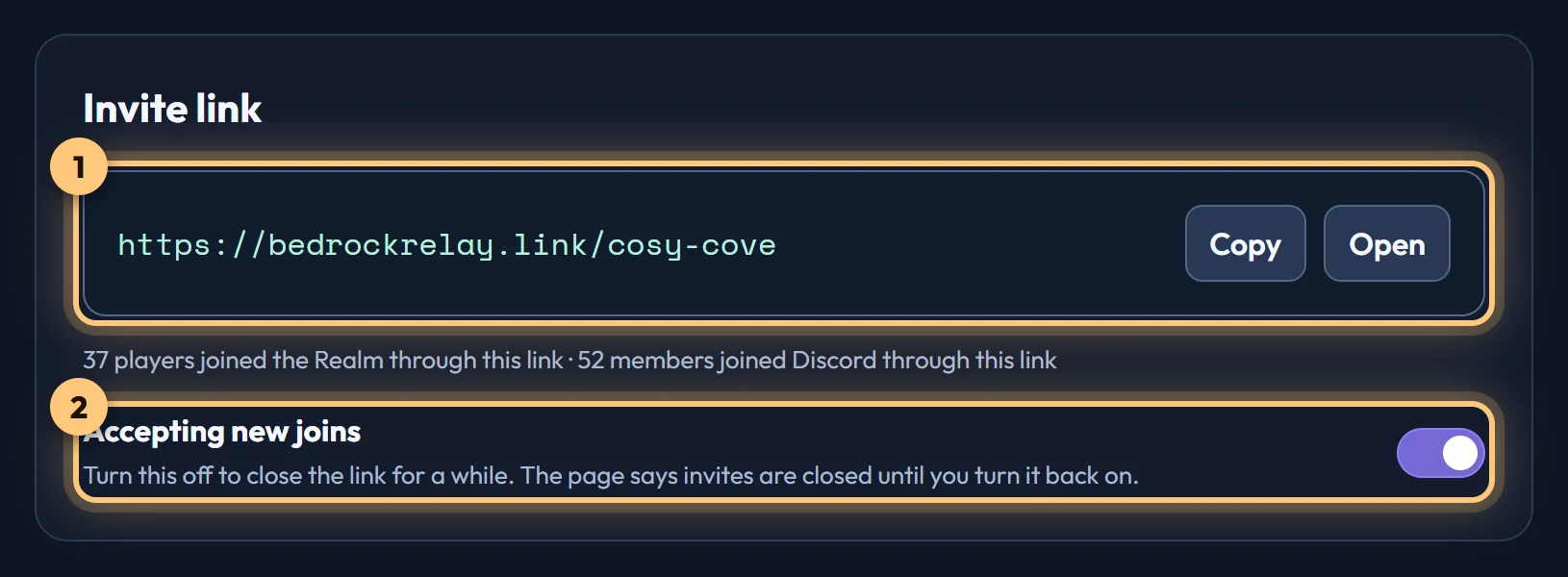
- Pause it by turning off Accepting new joins. The page says invites are closed until you turn it back on.
- Change its address under Change your link. The old address stops working at once and becomes free for anyone to take.
- Delete it with Delete link.
The tab counts how many people joined through the link. If you remove your world, its link stops working, and comes back if you undo the removal within 7 days.
We may rename or take down a link that passes for someone else or is being misused. See the Terms of Service.
Ready to connect a world, or need to change something?
Open the dashboard