
Help Managing your world
Plugins
Add Discord commands for your world, like /lastdeath, /world and /top. Every plugin in the catalog has been reviewed.
Installing plugins
Open Plugins in the dashboard's sidebar. Search, pick a category, or filter to what's installed, new or has an update. Each plugin shows its name and what it does, with a pill when it's installed or has an update; open it with the arrow (or anywhere on the card) for its commands, screenshots and install buttons.
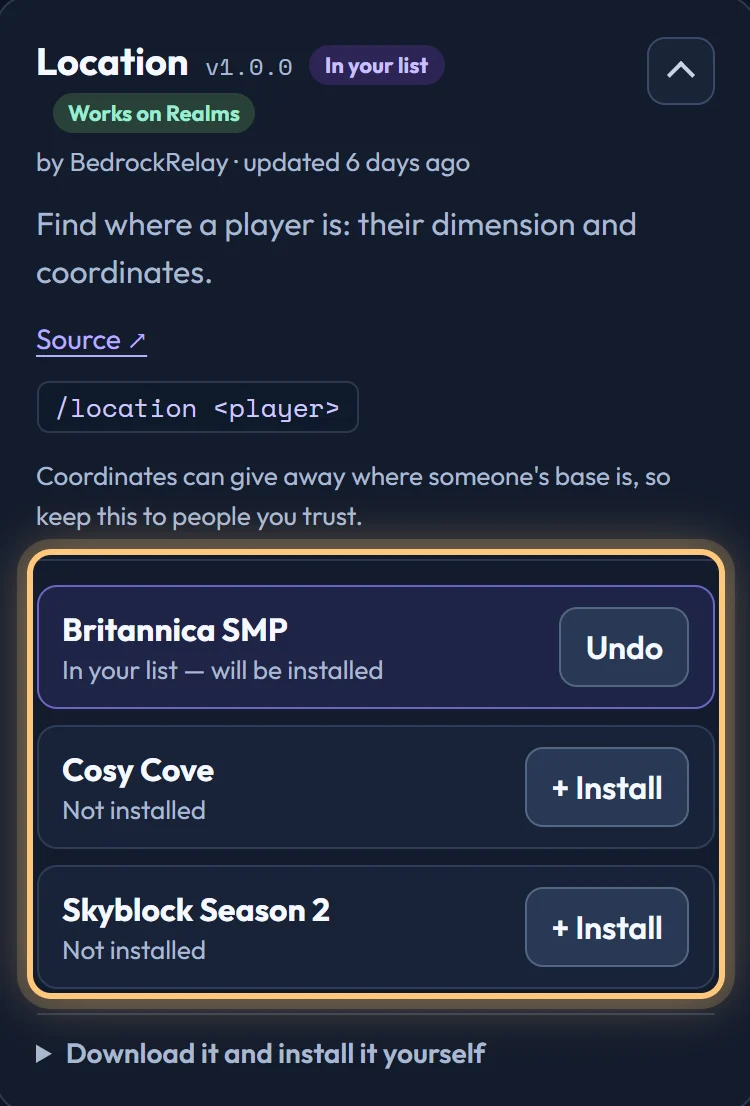
- Open a plugin's card and choose Install beside the world you want each plugin in. They collect in Your list at the bottom of the page.
- Choose Apply on your world in the list. Everything for that world installs in one go, over one SFTP connection, with a preview first. On a Realm, plugins go in with the Realm pack, so the Realm is closed until that's finished.
- On a dedicated server, restart it so it loads the plugins; a Realm opens again by itself. Each one is switched on the first time the world reports it, so its commands appear in Discord straight away.

Installing by hand
Every plugin card, opened, has Download it and install it yourself. Open it for the plugin's file and the steps: put the file in the folder it names on your server, add the plugin to the list in index.js, and restart. It's switched on for you, just like an install from the dashboard.
Plugins need pack v0.3.0 or newer, and some need a newer one. The Plugins page says when a pack update is needed. Updating the pack never removes your plugins.
Switching a plugin on and off
Installed plugins appear on the world's Plugins tab once the world has loaded them, already switched on, and their commands are added to the Discord servers the world is connected to. Switch one off to take its commands away; it stays off until you switch it back on. Click a plugin's name to open its card.
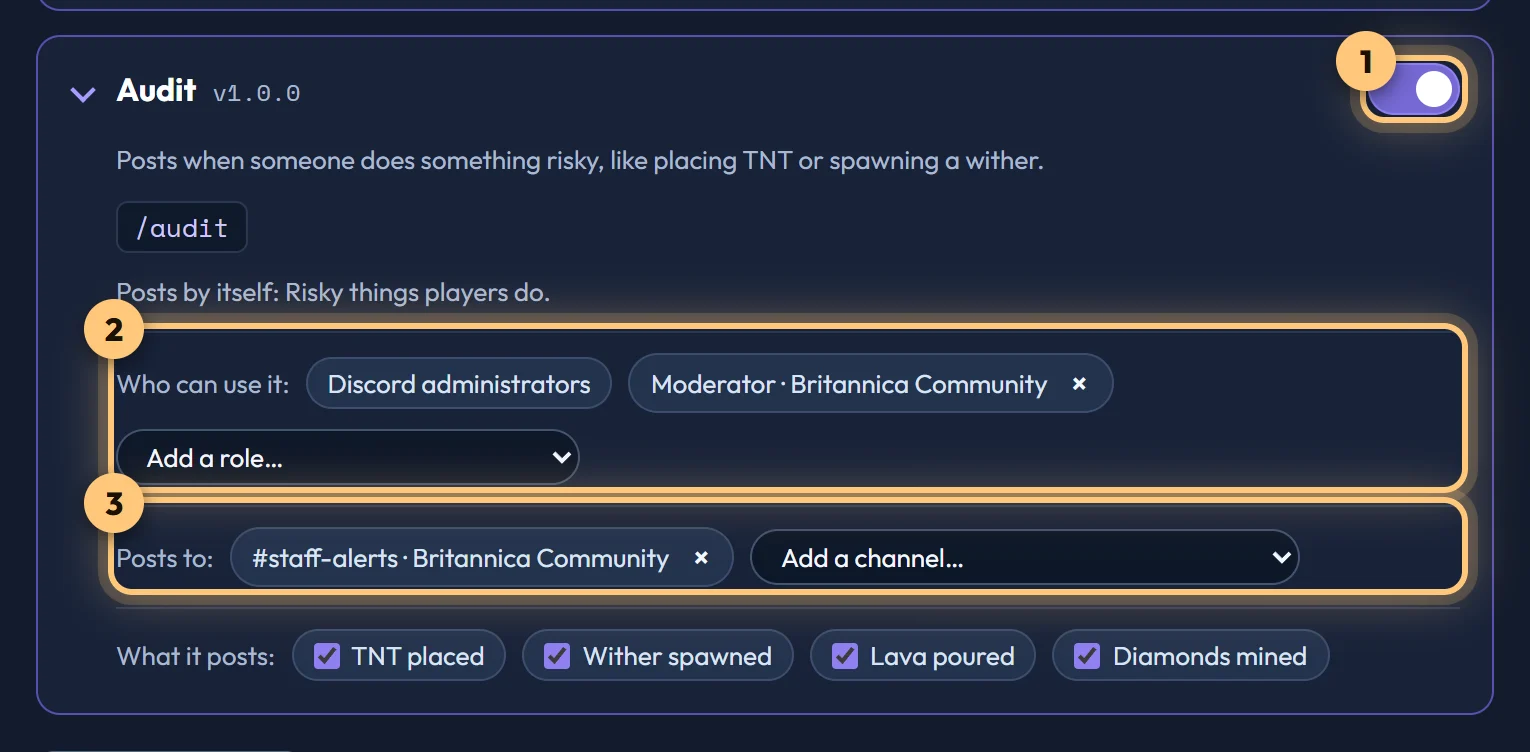
- Who can use it: at first only Discord administrators. Add a role to let its members use the plugin too.
- Who sees the answer: most answers are shown only to the person who asked, because they can reveal where people are or what they're carrying. A few, like
/worldand/top, are made to share and are shown to everyone in the channel. - Commands that change something in your world ask "are you sure?" first.
Plugins that post by themselves
Some plugins post without being asked. Leaderboards, for example, announces when someone reaches 100 hours played. Choose where its posts go under Posts to. It posts nowhere until you do.
Any channel connected to that world can be chosen, including one with no events ticked, just for plugin posts.
Some plugins post several kinds of thing. Audit, for example, can post when someone places TNT, spawns a wither or mines diamonds. They list each kind under What it posts: untick any you don't want, and the rest still go to the channels you chose.
Live boards
Some commands can be kept in a channel as a live board that updates itself, such as /top for a playtime leaderboard.
- From Discord: run the command with
live: True. The answer stays in that channel and updates every 10 minutes. - From the dashboard: on the world's Plugins tab, open the plugin and choose Post to a channel. Pick what to show, the channel, and how often it updates, from every minute to once a day, or Don't update to post it once.
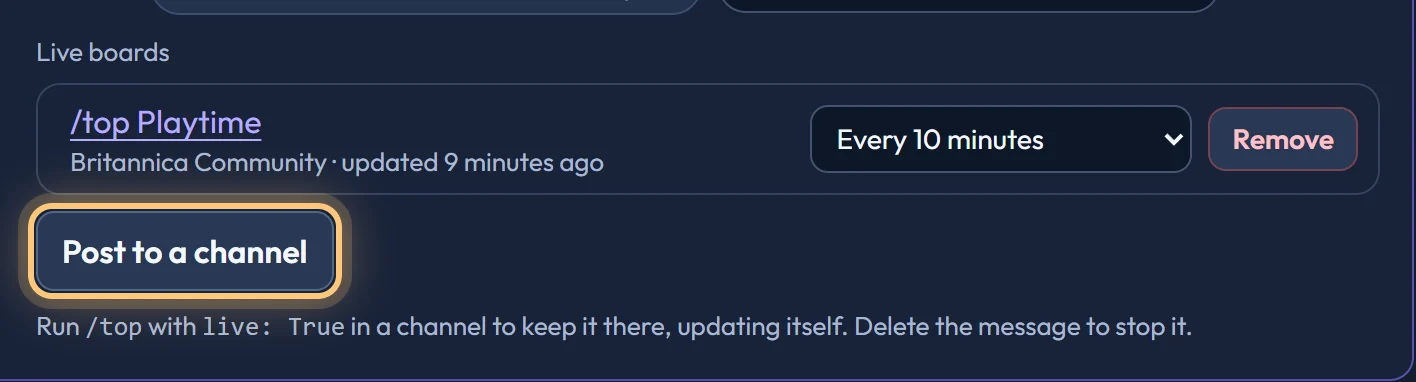
Delete the board's message in Discord to stop it, or remove it on the dashboard. A world can have up to 10 live boards. If one can't update, the list says why, such as the world being offline or the bot missing a permission in that channel.
Updating and removing
When a newer version is out, the Plugins page offers Update, or Add all updates at once, and the world's Plugins tab offers to update them too. Remove takes a plugin out of your world. Updates and removals go in the same list and are applied the same way. Your switches, roles and channels stay as they are.
Plugins on Realms
Plugins marked Works on Realms can go on a Realm. They're installed inside the Realm pack, so installing, updating or removing one closes the Realm until it's finished, then it opens again by itself. The Realm's Settings tab shows how it's going. Plugins on a Realm need Realm pack v1.2.0.
What you're installing
Every plugin's code is public in the BedrockRelay plugins repository on GitHub, and each card's Source link opens it. Plugins only reach your world as the reviewed file, and only when you apply them.
Your own plugins
Want to write one? See the developer guide, then submit it to the repository for everyone.
Or keep it to yourself: under Your own plugins on the Plugins page, choose Upload a plugin. It's listed only on your dashboard and installs like any other. Upload a file with the same id and a higher version to offer your worlds an update.
Nobody reviews your own plugins, and they run in your Minecraft world, so only upload code you wrote or trust. The BedrockRelay team can see what's uploaded and where it's used. See private plugins.
Ready to connect a world, or need to change something?
Open the dashboard