
Overview
The first page you see after signing in has a card for each of your Minecraft worlds: whether it's online, who's playing, today's messages, joins and deaths, and a small chart of the last week. A card also says when its pack is out of date. Select a card to open that world's page.
The sidebar lists your Minecraft worlds and the Discord servers you manage, and links to the Plugins page, this help, and the Discord support server.
Status updates from the BedrockRelay team, such as planned maintenance or a known problem, show at the top of the Overview until they're over. Choose Hide to put one away.
A Minecraft world's page
The top of the page shows the world's status, its Minecraft version and its pack version. Below that are five tabs.
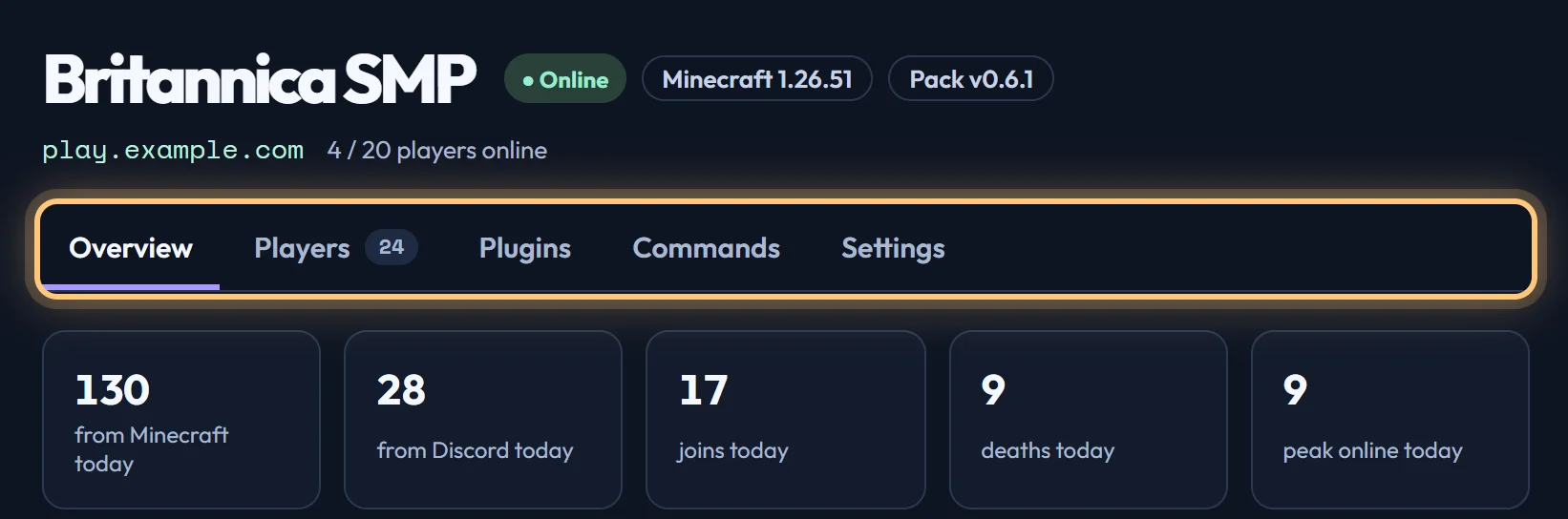
| Tab | What's on it |
|---|---|
| Overview | Today's numbers, who's online right now (with Kick), a 30-day chart, and every Discord channel the world is connected to. |
| Players | Everyone who has ever played, their details, linked accounts, and the moderation log. See Players and moderation. |
| Plugins | The plugins in this world: switch them on, choose who can use them and where they post, and post live boards. |
| Commands | Which Minecraft commands Discord may run. See Running Minecraft commands. |
| Settings | The pack and its updates, where players join, chat from Minecraft, linked players, security, and removing the world. |
Statistics
The Overview tab counts today's messages from Minecraft and from Discord, joins, deaths and the most players online at once. The 30-day chart shows messages each day by direction; hover over a day for its joins, deaths and peak, or choose Show as a table.
Statistics are counts, not the messages themselves. See Privacy and security.
Where players join
"Online" means the pack reaches BedrockRelay. That isn't quite the same as players being able to get in, so BedrockRelay also checks your server about once a minute the way Minecraft does before joining. If that check fails, the world shows Can't join and the Overview tab says why.
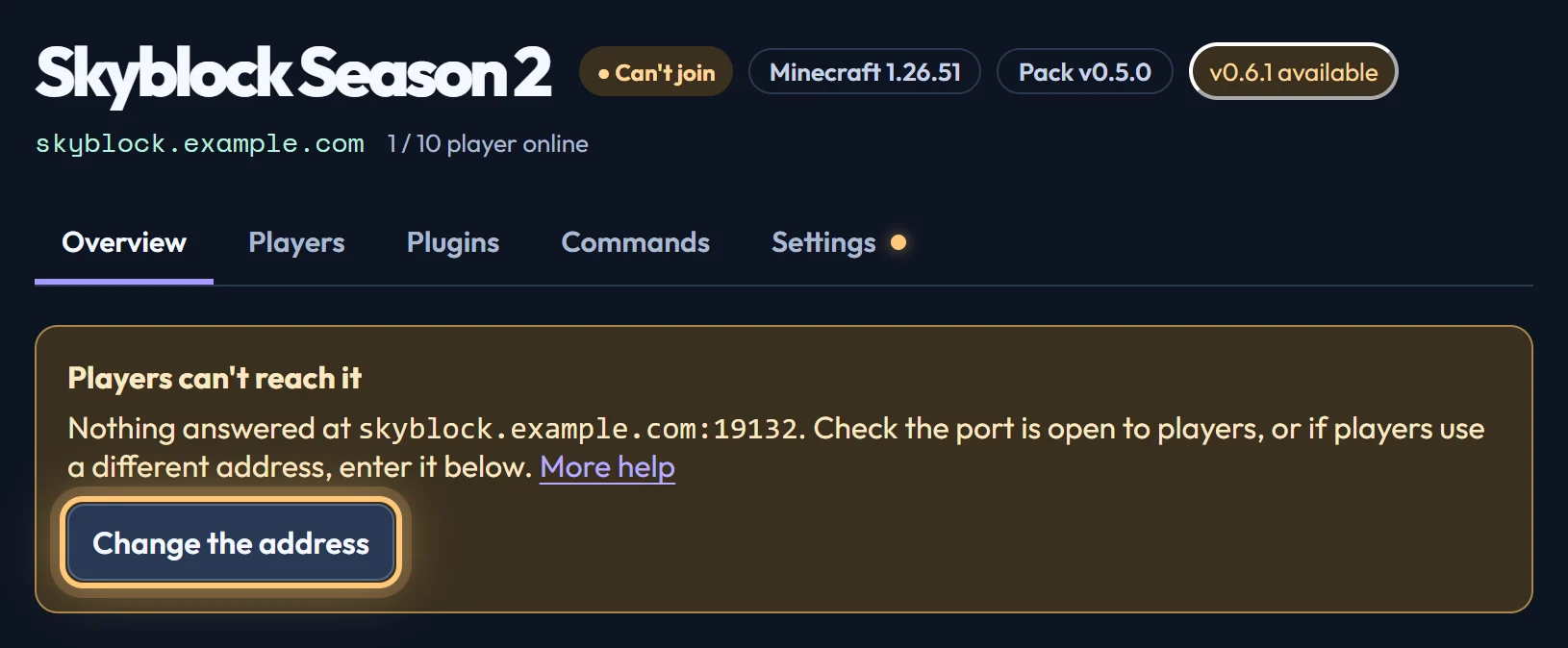
BedrockRelay checks the address your server connects from, on the port in server.properties. If players use a different address, enter it under Where players join on the Settings tab, like play.example.com:19132. What to do when players can't join.
This is for dedicated servers only: Microsoft hosts Realms, so a Realm's Settings tab has no join address.
A Discord server's page
Select a Discord server in the sidebar to open its page. It has five tabs:
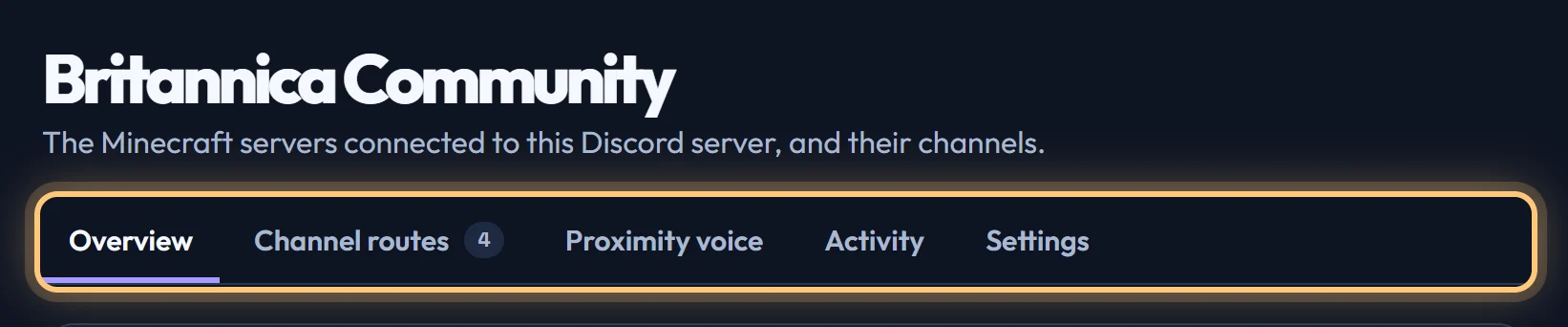
| Tab | What's on it |
|---|---|
| Overview | Anything that needs fixing, the Minecraft worlds connected here, and which channel each posts to. |
| Channel routes | Each channel's direction, events and shared chat, and adding a channel. |
| Proximity voice | Setting up and switching proximity voice. |
| Activity | Who changed what in BedrockRelay here, newest first. See below. |
| Settings | Whether BedrockRelay still has the permissions it needs, the language the bot writes in here, and Disconnect everything. |
You can manage a Discord server's page if you have Manage Server there. Worlds that belong to someone else are marked, and only their owner can change their channels.
Activity
The Activity tab lists the changes made to BedrockRelay in that Discord server, and who made them: channels connected, changed or disconnected, /relay disconnect and /relay run, proximity voice, live boards and the language. Everyone who can manage that Discord server sees the same list, so when several people look after one, you can see what changed.
Changes made before the tab existed may be missing from it.
BedrockRelay's permissions
When you add BedrockRelay, Discord gives its role the permissions it asks for. Anyone who can edit roles can take them away again later. The Settings tab checks: if something's missing, it says what, the Overview shows a warning, and Update the bot's permissions takes you to Discord to approve them again.
A single channel's settings can also take permissions away in that channel alone. Those show on the channel's route: see When BedrockRelay can't use a channel.
Disconnect everything
The emergency brake for a whole Discord server, at the bottom of its Settings tab. It removes every channel route there at once, stops live boards there updating (their messages stay), and switches proximity voice off, keeping its channels. Anyone with Manage Server there can use it, whoever owns the Minecraft worlds. The worlds and their settings are kept, and their owners can connect channels again.
To stop just one channel, use /relay disconnect in it, or remove its route.
If BedrockRelay is removed from a Discord server
Anyone who can manage a Discord server can remove BedrockRelay from it in Discord. In case that was a mistake, nothing is deleted straight away: everything BedrockRelay had there is kept and paused, and nothing posts there.
- The Discord server's page in the dashboard asks Did you mean to remove it? Choose No, add it back and everything carries on where it stopped. Any webhook Discord deleted meanwhile is made again. Or choose Yes, remove everything to clear it up now.
- The owners of the Minecraft worlds connected there see those channels marked Paused on their world's page.
- If nobody decides, everything BedrockRelay kept there is cleared up 30 days after it was removed. The Minecraft worlds themselves are never deleted.
Your account
The Account page shows who you're signed in as, the accounts you've connected, and what BedrockRelay keeps about you.
- A sign-in lasts seven days on each device. Sign out everywhere signs you out on all of them.
- If you've connected a Microsoft account for Realms, you can sign out of it here, which deletes it from BedrockRelay at once.
- When you first sign in, you're asked to agree to the terms and privacy policy. If they change, you're asked again.
Ready to connect a world, or need to change something?
Open the dashboard