
Help In Discord
Channels and events
Each connected channel chooses which way messages go and what it hears.
Connecting channels
You choose your first channel at the end of setup. To add more, open the Discord server in the dashboard's sidebar, go to its Channel routes tab and use Add a channel route. Manage channels on a Minecraft world's page takes you there too. Each channel's settings save as you change them.
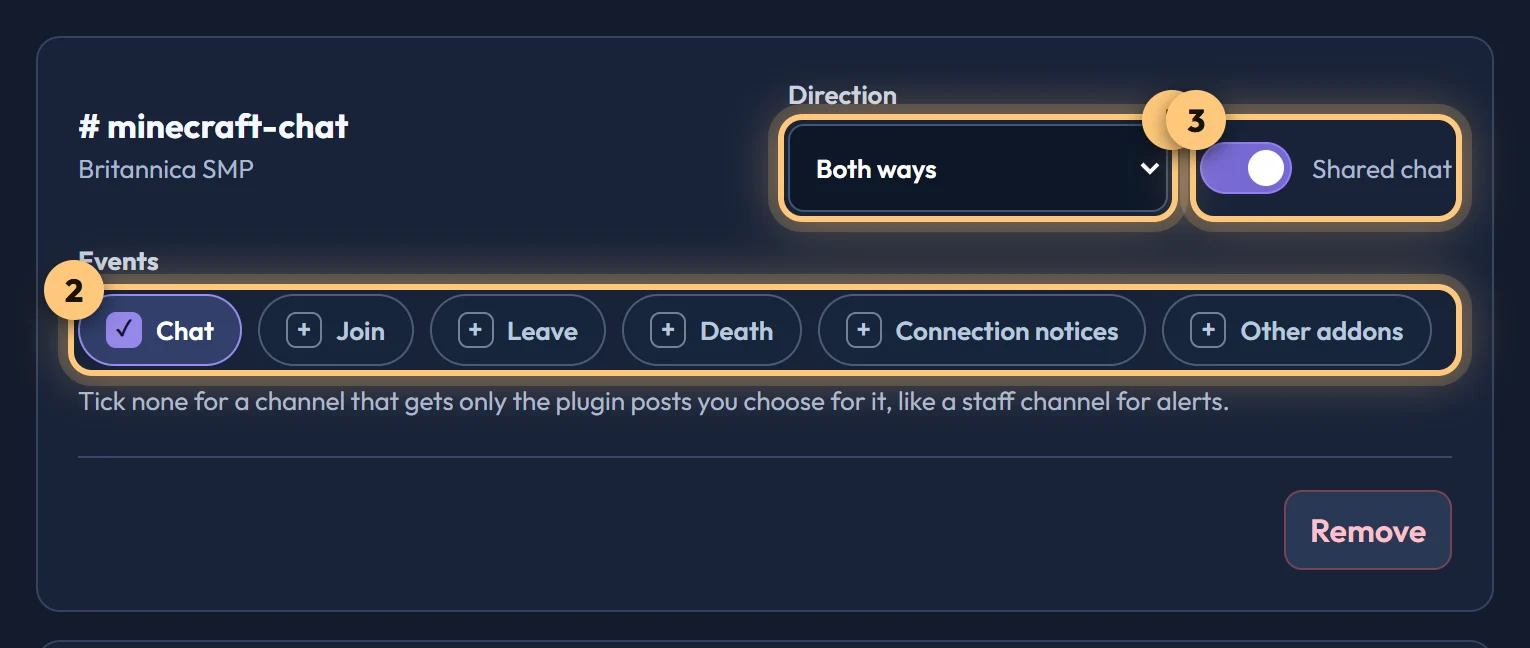
A common setup is #minecraft-chat with Chat both ways, plus a #server-log that's Minecraft → Discord only, with Join, Leave, Death and Connection notices.
Direction
| Setting | What it does |
|---|---|
| Both ways | Minecraft messages appear in the channel, and the channel's messages appear in Minecraft. |
| Minecraft → Discord | A read-only feed, useful for logs. |
| Discord → Minecraft | The channel talks into the game without showing its chat. |
Events
| Event | What the channel receives |
|---|---|
| Chat | Player chat, posted as the player with their head as the picture. Also decides whether the channel's own messages go into Minecraft. |
| Join / Leave | A notice when a player joins or leaves. |
| Death | A notice when a player dies, and how. |
| Connection notices | A notice when the world connects, one if it goes offline (a minute without a check-in), and one when it's back. Nothing in between. |
| Other addons | Messages that other addons in your world send to Discord. See the developer guide. |
You can also connect a channel with no events ticked. It then gets only the plugin posts you send to it, which suits a staff channel for alerts.
How it looks in Minecraft
- Discord messages appear as
[Discord] Name: message, with the name in the colour of the person's highest Discord role. - Discord bold, italic, underline, strikethrough and
codeare shown with Minecraft's own formatting. - Chat that starts with
!stays in Minecraft and isn't sent to Discord, which suits other addons' chat commands. You can change this on the world's Settings tab, under Chat from Minecraft. - From Minecraft,
@everyone,@hereand role mentions are defused, so nobody can ping a whole Discord server from the game. - Messages from other bots are ignored, so two relays can't echo each other forever.
When BedrockRelay can't use a channel
When you add BedrockRelay, Discord gives it a role called BedrockRelay with the permissions it asked for. That role applies across the whole Discord server, but each channel can override it. Private channels, and channels that take permissions away from @everyone or certain roles, can take them away from BedrockRelay too.
In every channel it relays, BedrockRelay needs:
- View Channel, to see the channel and read what people say for Minecraft.
- Manage Webhooks, to post each message under the player's name and head.
The dashboard checks this for you. Channels BedrockRelay can't use are greyed out when you choose one, and a connected channel that later loses a permission shows a warning on its route.
To fix a channel:
- In Discord, open the channel's settings (the cog next to its name) and choose Permissions.
- Add the BedrockRelay role to the list of roles and members.
- Set View Channel and Manage Webhooks to allowed (the green tick), and save.
- Back in the dashboard, choose Check again.
If the channel takes its permissions from its category, you can make the same change on the category instead.
Connecting another Discord server
Only the person who set up a Minecraft world can connect it to channels, in any Discord server. Add the bot to the other Discord server, open that Discord server in the dashboard, and add a channel on its Channel routes tab.
Anyone with Manage Server in a Discord server can still disconnect it from their own Discord server, from the dashboard or with /relay disconnect.
Ready to connect a world, or need to change something?
Open the dashboard