
Help Getting started
Connect a Realm
A Realm can't reach the internet itself, so one of our bot accounts joins it as a hidden player and relays for it.
How it works on a Realm
Realms don't let behaviour packs talk to the internet, so BedrockRelay works differently there. One of our relay bots joins your Realm as a player. It hears the chat, joins, leaves and deaths, and says Discord's messages in the game.
A small Realm pack goes into your Realm's world alongside it. With the pack, the bot:
- is hidden from players, as a spectator far away in the End, rather than standing in your world;
- can run commands from Discord, even with cheats off;
- knows where players are, for proximity voice, and can read player details;
- runs the plugins that work on Realms.
The bot uses one of your Realm's player slots. The dashboard counts it, and the Players list marks it Our bot.
Achievements are kept. Unlike a dedicated server, a Realm doesn't need Beta APIs, and the Realm pack doesn't turn on any experiment. Your achievements are safe as long as the world never turns on an experiment itself, or goes into Creative.
Setting it up
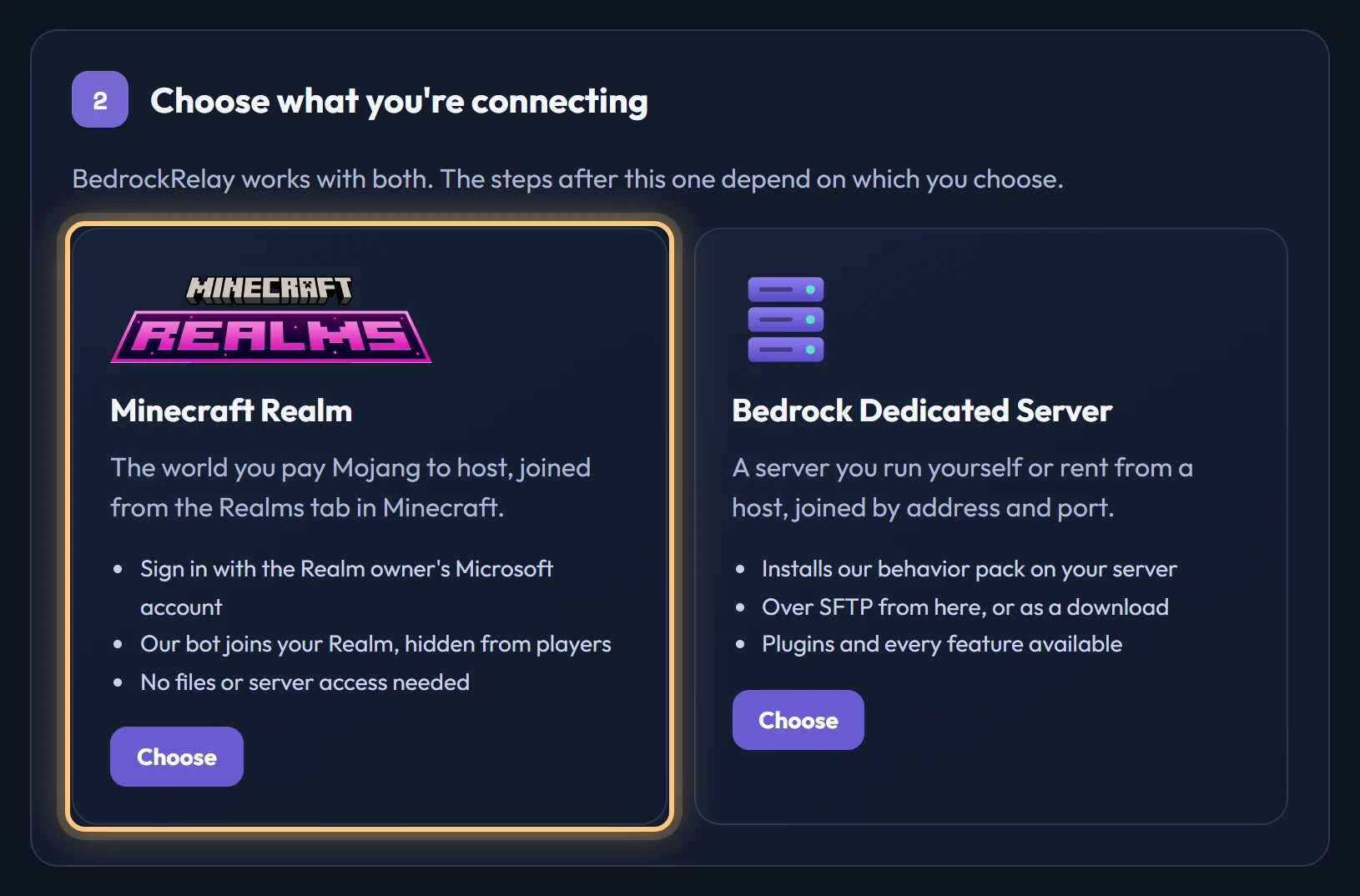
Open the dashboard, choose Set up a new world, pick your Discord server, then choose Minecraft Realm.
- Sign in as the Realm owner. Use the Microsoft account that owns the Realm. We use it to list your Realms, invite our bot and make it an operator, and add the pack to your world, now and for updates.
- Choose your Realm. You see every Realm you own. Choose Connect, and our bot is invited.
- Add BedrockRelay to your Realm. Tick that you understand the Realm is closed until this is finished, then choose Add the pack. We close the Realm, download its world, add the pack, upload it and open the Realm again. Anyone playing is disconnected meanwhile, and other packs aren't touched. You can leave the page while it runs.
- Choose a channel. Chat starts flowing as soon as our bot is in.
Adding the pack yourself
Choose Download it and add it myself if you'd rather your Realm wasn't closed and re-uploaded, which suits big worlds. Worlds over 4 GB have to be done this way.
- Open the downloaded
.mcpackfile on a device with Minecraft. Minecraft imports the pack. - In Minecraft, go to Play, then the Realms tab, and open your Realm's hub. Choose World, then Edit World, and under Behavior Packs activate BedrockRelay.
- Press Play, then Save Changes. Minecraft uploads the pack and reloads your Realm, and the setup step finishes by itself once the pack answers our bot.
The file carries your Realm's own secret, so keep it to yourself.
Updating the Realm pack
When a new Realm pack is out, the Realm's card and its Settings tab offer Update pack. It goes in the same way as the first time: the Realm is closed until it's finished, then opens again by itself. Your channels, settings and plugins stay as they are, and the progress shows at the top of the Realm's page.
If the pack goes missing from your world (for example, after changing packs in Minecraft), the Settings tab offers Add the pack again.
What's different on a Realm
- Chat from rank addons: our bot reads the line players see, such as
[VIP] Steve: hi. See Joins show in Discord, but chat doesn't. - Plugins go in with the Realm pack, so installing one closes the Realm until it's finished. Only plugins marked Works on Realms can be installed.
- No join address or pack tokens: our bot handles both, so the Realm's Settings tab doesn't show them.
- Removing a Realm makes our bot leave it. Like a server, you can undo it for 7 days.
Your Microsoft sign-in
A Realm's pack lives inside its world, so every pack install or update needs the owner's permission. That's why BedrockRelay keeps your Microsoft sign-in, and why it's handled carefully:
- It's kept encrypted, and used only with Minecraft Realms, only on Realms you own.
- It's never used to join a Realm or to sign in anywhere as you. Our bot joins with its own account.
- Choose Sign out of Microsoft on your Account page and it's deleted at once. Your Realms keep relaying; adding or updating their pack asks you to sign in again.
If something goes wrong
- Your Realm didn't open again: in Minecraft, open the Realm's settings and turn off Temporarily close.
- Our bot can't get in: if it was removed from the Realm's members, remove the Realm from BedrockRelay and set it up again.
- The pack hasn't answered our bot: choose Add the pack again on the Realm's Settings tab.
- Minecraft refused the sign-in: sign in to Minecraft with that account once to accept Minecraft's terms, and check its Xbox privacy settings allow multiplayer. A child account needs a parent to allow online play first.
Every failure in setup says what happened and what to do. If it happens again, tell us on the Discord support server.
Ready to connect a world, or need to change something?
Open the dashboard