
Help In Discord
Linking accounts
Tell BedrockRelay which Minecraft player you are. It takes a minute, and you can undo it any time.
What linking does
- Plugins know who you are.
/lastdeathshows your own last death and/topshows your rank, without you typing your name. - Your chat looks like you. What you type in Minecraft shows up in Discord under your nickname and profile picture in that Discord server, like your own Discord messages. Your joins, leaves and deaths still show your Minecraft name.
- You can use proximity voice, which needs to know where you are in the game.
How to link
- Join the Minecraft world.
- In a Discord channel connected to it, run
/relay link player:followed by your Minecraft name. - A 6-digit code appears in your Minecraft chat. Only you can see it.
- Back in Discord, choose Enter code and type it in.
Codes work for 10 minutes. Run /relay link on its own to see your link, or to undo it with Unlink.
Links are separate for each Minecraft world. If a channel relays more than one, BedrockRelay links you on whichever one you're playing.
For world owners
Linked players have a tick on their picture and their Discord name beside them on the world's Players tab, where you can also unlink them.
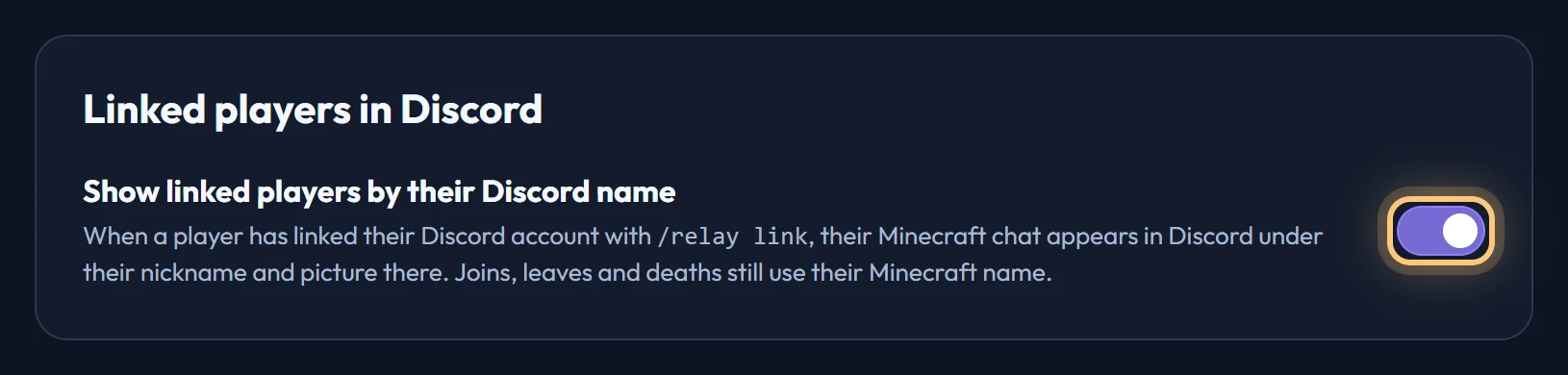
If you'd rather chat always showed Minecraft names, turn off Show linked players by their Discord name on the world's Settings tab.
Ready to connect a world, or need to change something?
Open the dashboard