
Help Managing your world
Players and moderation
Who's playing, who has played, what they're carrying, and a way to kick someone from anywhere.
Everyone who has played
A world's Overview tab shows who's online right now. Its Players tab lists everyone who has ever played there: online players first, then by when they were last on. Filter to Online or Linked, or search by Minecraft or Discord name.
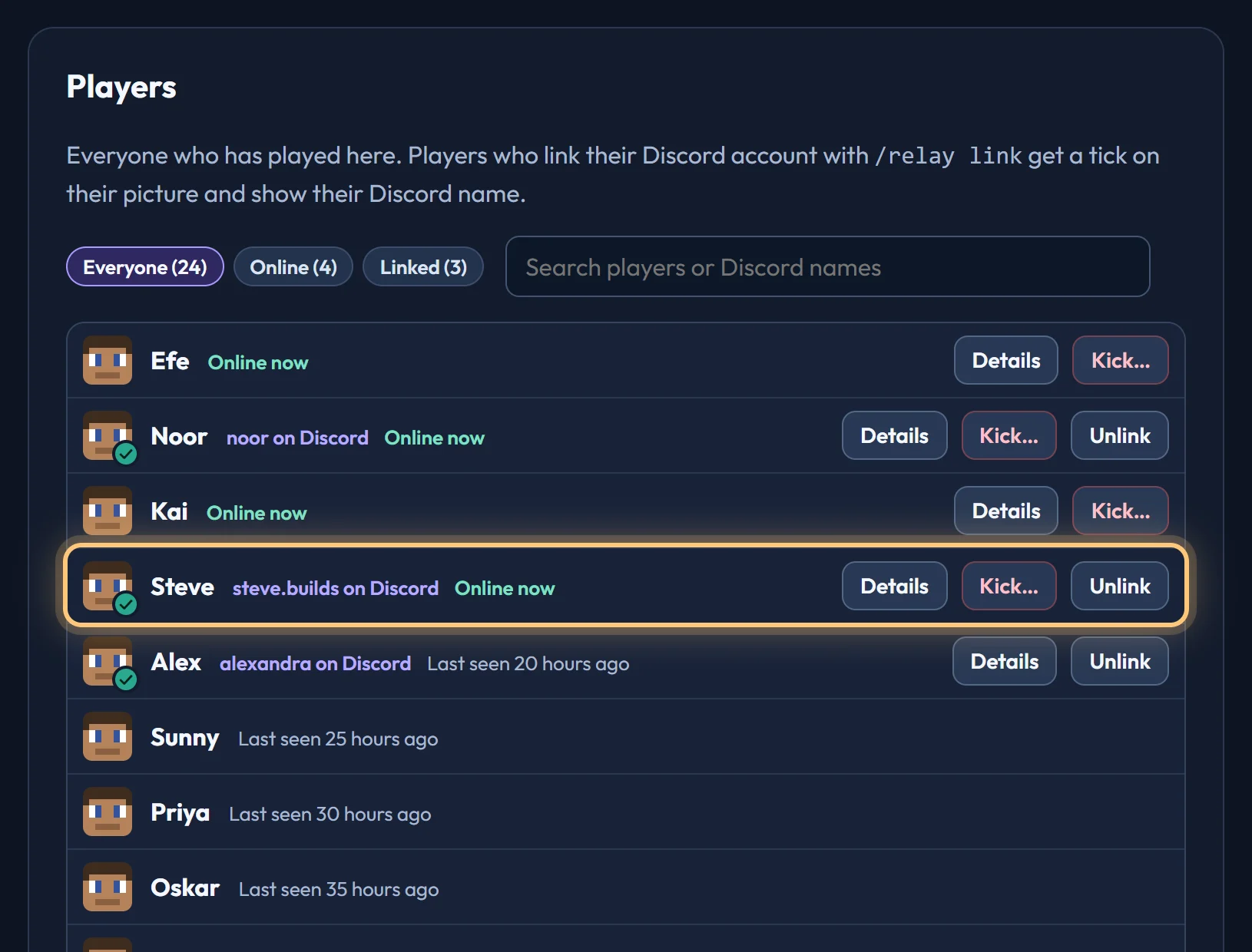
Players who linked their Discord account have a tick on their picture and their Discord name beside them. You can unlink them here.
Only the person who set up the world sees these tabs. Managing a Discord server it's connected to isn't enough.
Player details
Choose Details beside a player to see their health, hunger, level, game mode, device and permission level, where they are and their spawn point, their effects, armour, inventory and ender chest. Select an item to see its enchantments and durability, or what's inside a shulker box.
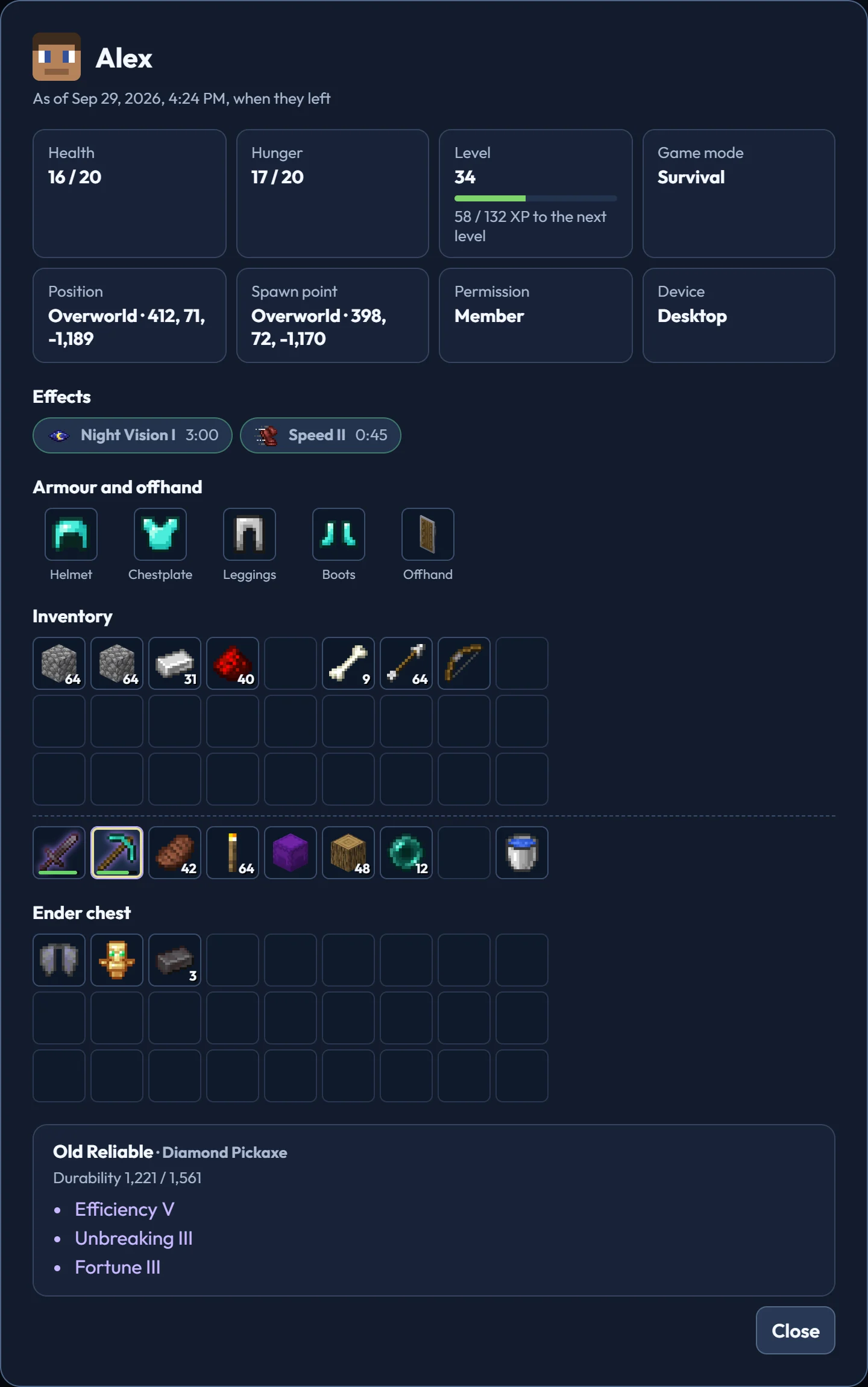
While the player is online, details are read live; choose Refresh to read them again. For a player who's offline, you see what they had when they left, with the time it was saved.
Details need pack v0.6.0 or newer (the Realm pack v1.1.0 on a Realm). Update the pack from the world's Settings tab.
Kicking a player
Choose Kick… beside an online player, on the Overview tab or the Players tab. You can give a reason, which they see on their screen. They're disconnected straight away and can join again whenever they like.
Kicking works with every pack version.
The moderation log
The bottom of the Players tab records every kick: who, the reason, and when. Attempts that didn't work are logged too:
- Server refused means the Minecraft world couldn't do it.
- No answer means it didn't reply in time, so the kick may or may not have happened.
Ready to connect a world, or need to change something?
Open the dashboard